How to Add Pages to Your Free Squarespace Template (Even If It Doesn't Come With Them)
This post contains affiliate links. If you purchase through them, I may receive a small commission at no extra cost to you.
Table of Contents Show
You picked a Squarespace template you love, but it's missing a page you need. Maybe it doesn't have a blog. Or a shop. Or maybe it’s a one-page template you liked the vibe of, but you need to add a bunch of indvidual service pages.
Good news:
All Squarespace 7.1 templates are fully customizable. The pages that come with your template are just suggestions, a jumping-off point.
You can add, remove, or rearrange pages however you want. Your template isn't locked into whatever Squarespace decided to include in the demo.
How to Add a Page in Squarespace
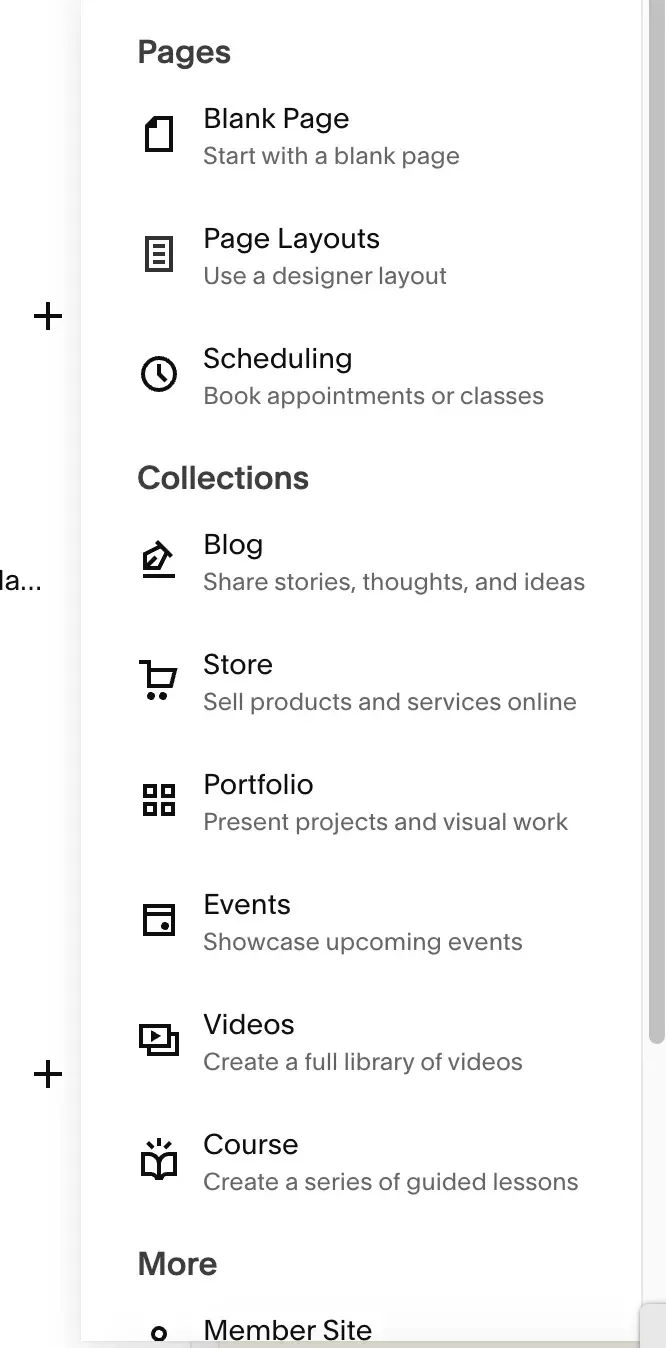
Adding a page takes about 30 seconds:
Log into your Squarespace site
Go to Pages in the left sidebar
Click the + icon next to "Pages" or "Not Linked"
Choose your page type:
Page - Standard page (can be blank or use designer layouts)
Blog - For blog posts and articles
Store - For selling products
Portfolio - For showcasing work/projects
Events - For calendar and event listings
Scheduling - For booking appointments
Videos - For video library
Course - For guided lessons and online courses
Member Site - For gated membership content
Name your page and start adding content
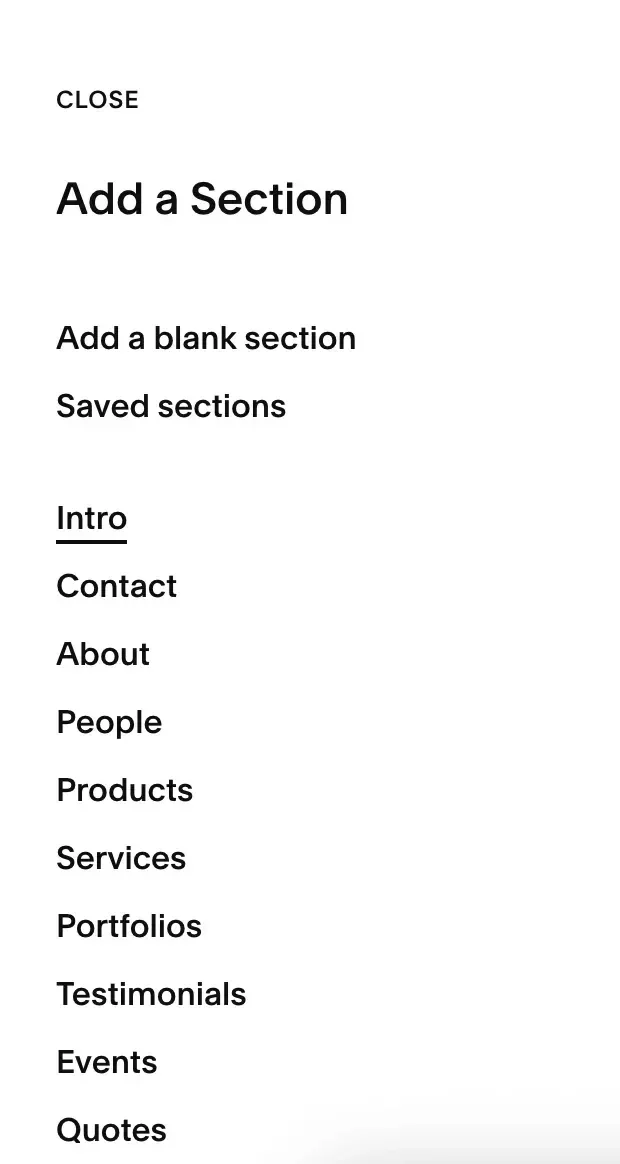
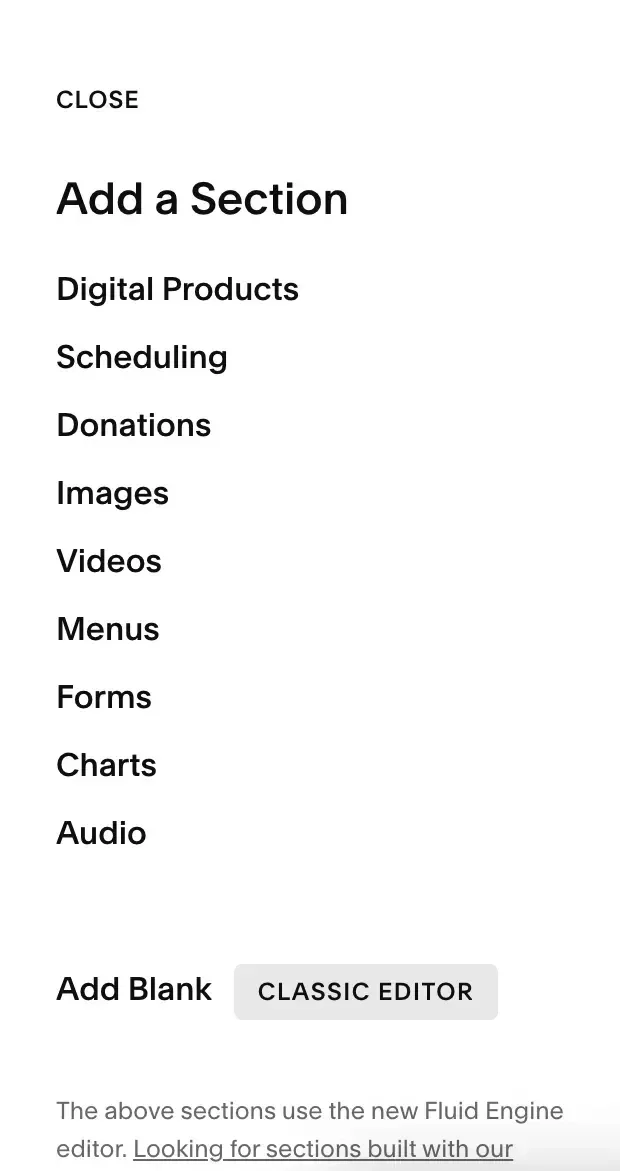
Once your page is created, you can customize it further by adding sections.
Click the + button on any page to add pre-built sections like:
Intro, Contact, About, People - Common page layouts
Products, Services, Portfolios - Business-focused sections
Testimonials, Events, Quotes - Social proof and engagement
Digital Products, Scheduling, Donations - Functional sections
Images, Videos, Menus, Forms, Charts, Audio - Media and interactive elements
Add Blank - Start from scratch with Fluid Engine or Classic Editor
These pre-built sections give you a head start on layout and design, so you're not staring at a blank page, unsure how to begin.
Common Pages People Add
Blog
Every Squarespace 7.1 template can support a blog. Some come with one pre-built, but if yours doesn't, just add a Blog page. You can customize the layout, post grid, and featured images to match your template's style.
Shop/Store
Want to sell products? Add a Store page. You can sell on any Squarespace plan (even Basic at $16/month), though you'll pay a larger transaction fee on sales unless you upgrade to Plus or Advanced. Some templates showcase products better than others, but all Squarespace templates support e-commerce.
Services
Some Squarespace templates don't come with a dedicated Services page because service businesses vary so much. Add a standard Page, then use the pre-built "Services" section to get started with a professional layout. You can customize it from there - list format, grid layout, separate sections for each service.
Portfolio/Work
If you're a photographer, designer, or creative and your template doesn't include a portfolio section, add a Portfolio page. Or add a standard Page and use the "Portfolios" section. You can display your work in galleries, grids, or slideshows depending on your template's design.
That said, Squarespace leans heavily toward photographers and portfolio templates, so you should be able to find a good starting template with a portfolio if that’s your jam.
About
Most Squarespace templates have an About Page built already, but if not, it’s easy to add one. Use a pre-built section to build this page out.
Team
Templates designed for solo businesses might skip the Team page. If you have staff, add a Page and use the pre-built "People" section to showcase team member bios, photos, and roles.
Booking/Scheduling
Need clients to book appointments? Add a Scheduling page or use the "Scheduling" section on an existing page (requires Acuity Scheduling integration or specific Squarespace features depending on your plan).
Contact
Most templates include a Contact page, but if you need to add one, use the pre-built "Contact" section which includes form fields and location info.
Do Some Templates Work Better for Certain Pages?
Yes and no.
Technically, every Squarespace 7.1 template can support any page type. You can add a blog to a restaurant template or a shop to a photography template.
Stylistically, some templates are designed with specific page types in mind. A template built for visual portfolios might have image-heavy layouts that look weird with text-heavy service descriptions. A template designed for restaurants might not showcase products as elegantly as one built for e-commerce.
But if you love a template's overall vibe and it's close to what you need, you can make it work. You're not locked in. You can adjust layouts, swap sections, and customize styling to fit your content.
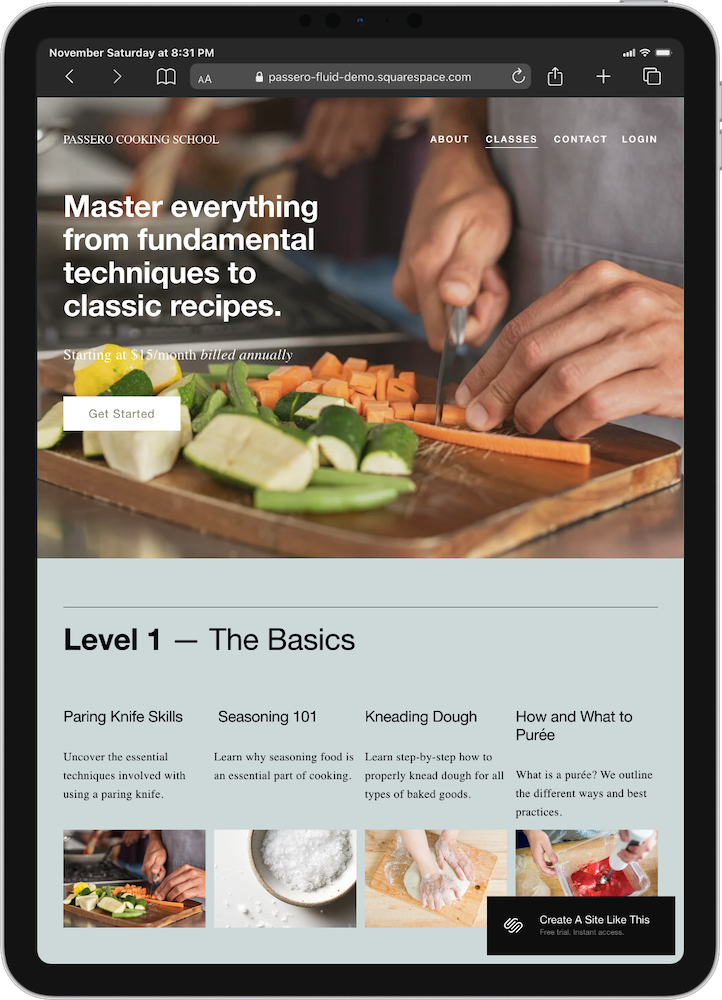
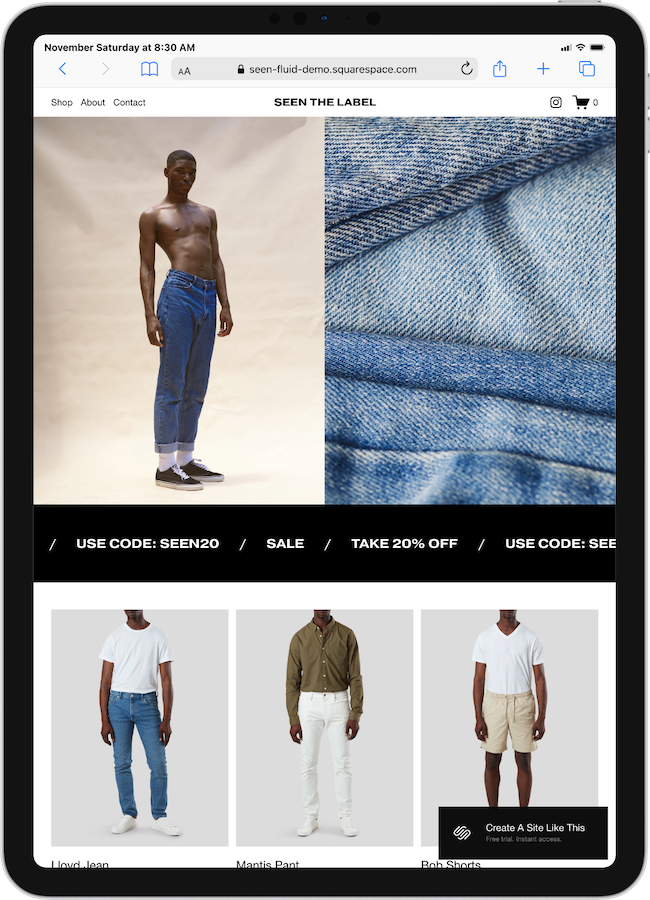
For example: The Passero template (left) is built for a cooking school, but you could really use it as a base for any kind of course if you like the style. And the Seen template (right) is a shop set up for men’s fashion, but you could easily use it for your soap, jewelry, travel prints… whatever you’re selling. (BTW, click the images if you want to view a demo of either site)
If you like how a template looks, don't let a template's starter pages limit you. Squarespace 7.1 templates are flexible. Add whatever pages you need, delete the pages or sections you don't need, and customize the layout to fit your business.
The template is the starting point, not the final product.
Want to see which Squarespace template fits your needs?
Check out my Squarespace template reviews where I break down the design, features, and best use cases for each one.